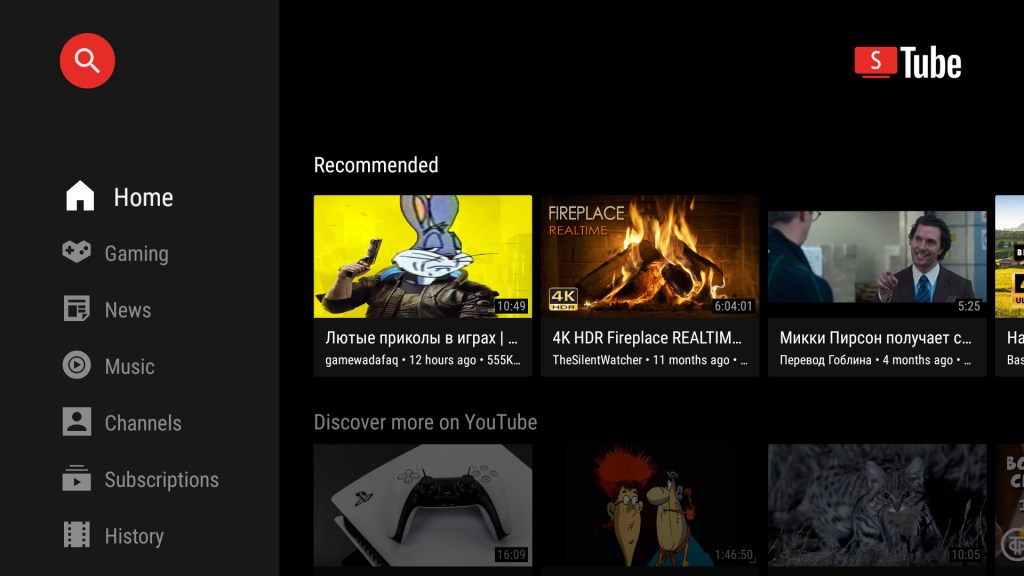
SmartTube is a free, open-source YouTube client optimized for Android TVs, TV boxes, Firestick, and Google TV.. It replaces the official YouTube app to offers:
- Ad‑free playback by blocking all YouTube ads.
- SponsorBlock integration, skipping intros, outros, sponsorships, and other unwanted segments.
- Support for high-resolution up to 8K, HDR, and 60 fps video playback.
- Background playback and picture‑in‑picture for multitasking.
- Casting support and remote control linking, so you can cast from your phone and use your regular TV remote.
- No requirement for Google Play Services—you can sign into your account freely.
- Rich customization: UI themes, playback settings, subtitle options, DeArrow (clickbait filtering).
Ideal for large-screen streaming, SmartTube delivers a sleek, fast, and uninterrupted viewing experience—without ads and trackers.
🔧 Step 1: Enable Developer Options on Firestick
To install third-party apps like HD Smartube, you must enable Developer Options:
- From the Firestick home screen, navigate to Settings (gear icon).
- Select My Fire TV.
- Choose About.
- Highlight Fire TV Stick and press the Select button on your remote seven times consecutively.
- A message will appear stating, “No need, you are already a developer.”
- Return to the My Fire TV menu; you should now see Developer Options listed.
📥 Step 2: Install the Downloader App
If you haven’t already installed the Downloader app:
- From the Firestick home screen, navigate to Find > Search.
- Type Downloader and select the app from the search results.
- Click Get to download and install the app.
- Once installed, open the Downloader app.
- In the Developer Options menu, select Install unknown apps.
- Find and select the Downloader app.
- Toggle the switch to ON to allow Downloader to install third-party apps.
📲 Step 3: Download and Install HD Smartube APK
With Downloader ready, you can now download and install the HD Smartube APK:
- In the Downloader app, you’ll see a field labeled Enter a URL or Search Term.
- Enter the downloader code 4244746. This will take you to our Tool Box page to download SmartTube directly.
- Click download to start the download.
- Once the download completes, the installation prompt will appear.
- Click Install to begin the installation process.
- After installation, click Done.
- To free up space, click Delete to remove the APK file, then confirm by selecting Delete again.
🎬 Step 4: Access and Use HD Smartube
To launch HD Smartube:
- From the Firestick home screen, navigate to Your Apps & Channels.
- Scroll to find HD Smartube and select it to open.
- Upon first launch, the app may request permission to access certain features; grant the necessary permissions.
- Sign in to your Google account by scanning the QR code displayed on the screen.
- Browse through the extensive library of YouTube content available.
💡 Tips for Optimal Experience
- Install a Video Player: HD Smartube works best with external video players like MX Player or ExoPlayer.
- Clear Cache: If you encounter playback problems, clearing the app’s cache can help.
- Regular Updates: Keep the Downloader app and HD Smartube updated to ensure access to the latest features and content.
🔐Bonus Tip: Use a VPN
We strongly recommend using a trusted VPN like Fastest VPN or Nord VPN when using these apps. This helps protect your identity and prevents ISP throttling.
Final Thoughts
With Developer Mode enabled and these top Downloader codes, your Firestick transforms into a powerhouse streaming device. Whether you’re after live sports, blockbuster movies, or binge-worthy shows, there’s something on this list for everyone.
🧠 Pro Tip: Bookmark this post to stay updated—Downloader codes change frequently, and we’ll update this list as new apps rise in popularity.
📜 Legal Disclaimer
The content provided on this website is for educational and informational purposes only. We do not host, distribute, or promote any illegal content or third-party applications that violate copyright laws or Amazon’s terms of service.
Enabling Developer Mode on your Amazon Firestick is a built-in feature provided by Amazon for developers and advanced users. Our guides are designed to show you how to access this feature legally and responsibly. We do not encourage or endorse the use of Developer Mode for unauthorized access to copyrighted material, digital piracy, or any activity that violates applicable laws or platform terms.
By using this website, you acknowledge and agree that:
- You are solely responsible for how you use the information provided.
- You will comply with all applicable local, state, federal, and international laws.
- You understand that modifying your Firestick may void warranties or violate Amazon’s terms of use.
If you do not agree with this disclaimer, please refrain from using this website.

 Total freedom on your Firestick.
Leave a comment