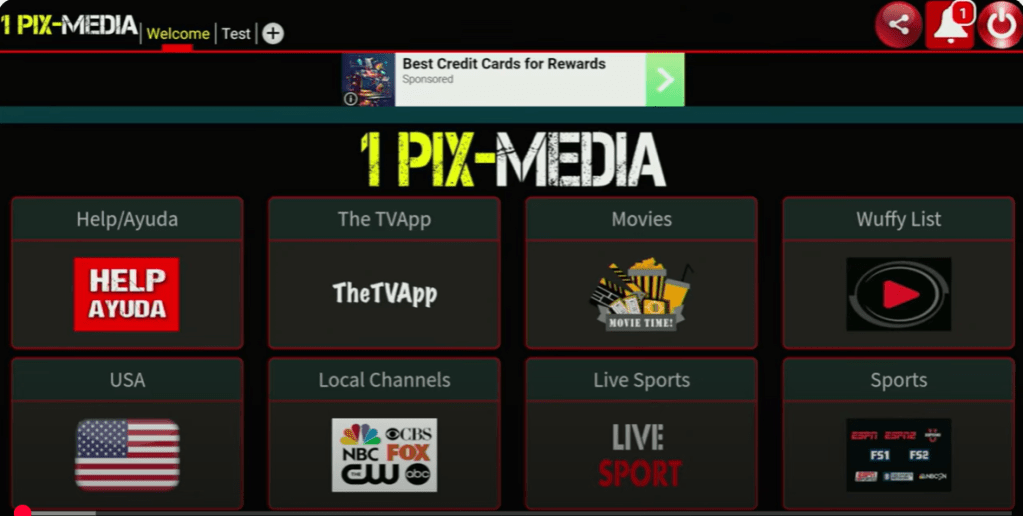
If you’re experiencing issues with the 1Pix Media APK on your Firestick—whether it’s crashing, buffering, or not opening at all—you’re not alone. This guide walks you through step-by-step solutions to get it back up and running.
1. Check Your Internet Connection
A weak or unstable connection can prevent streaming apps from working correctly.
- Go to Settings > Network and check the signal strength.
- Restart your router or try switching to a different Wi-Fi network.
- Use an Ethernet adapter for a more stable connection.
2. Force Stop and Clear Cache/Data
Corrupted cache or temporary files can cause app crashes.
- Go to Settings > Applications > Manage Installed Applications.
- Find 1Pix Media APK and select it.
- Click on Force Stop.
- Choose Clear Cache and then Clear Data.
- Relaunch the app.
3. Update or Reinstall the App
Outdated versions or broken installations can cause functionality issues.
- Visit a trusted source like firestickfreebies.com for the latest APK version.
- Uninstall the current version via Settings > Applications.
- Reinstall using Downloader (enter the updated code or direct APK link).
4. Enable Unknown Sources
If the app won’t install or open, it might be due to permission settings.
- Go to Settings > My Fire TV > Developer Options.
- Enable Apps from Unknown Sources and ADB Debugging.
5. Check for Firestick System Updates
An outdated Firestick OS might not be compatible with the latest APK builds.
- Navigate to Settings > My Fire TV > About > Check for Updates.
- Install any available updates and restart your device.
6. Use a VPN
Some content might be geo-restricted or blocked by your ISP.
- Install a reputable VPN like Fastest VPN or Nord VPN.
- Connect to a server where the app works smoothly (typically the US or UK).
7. App Not Launching at All? Try Sideloading Again
If the app won’t open or keeps crashing:
- Uninstall it completely.
- Download the latest APK to your phone or PC.
- Use apps like Send Files to TV or Downloader to sideload again.
📜 Legal Disclaimer
The content provided on this website is for educational and informational purposes only. We do not host, distribute, or promote any illegal content or third-party applications that violate copyright laws or Amazon’s terms of service.
Enabling Developer Mode on your Amazon Firestick is a built-in feature provided by Amazon for developers and advanced users. Our guides are designed to show you how to access this feature legally and responsibly. We do not encourage or endorse the use of Developer Mode for unauthorized access to copyrighted material, digital piracy, or any activity that violates applicable laws or platform terms.
By using this website, you acknowledge and agree that:
- You are solely responsible for how you use the information provided.
- You will comply with all applicable local, state, federal, and international laws.
- You understand that modifying your Firestick may void warranties or violate Amazon’s terms of use.
We strongly recommend using a trusted VPN like Fastest VPN and only installing trusted applications from reliable sources. This site assumes no liability for any legal issues, technical problems, or consequences resulting from your use of Developer Mode or any third-party applications mentioned.
If you do not agree with this disclaimer, please refrain from using this website.

 Total freedom on your Firestick.
Leave a comment