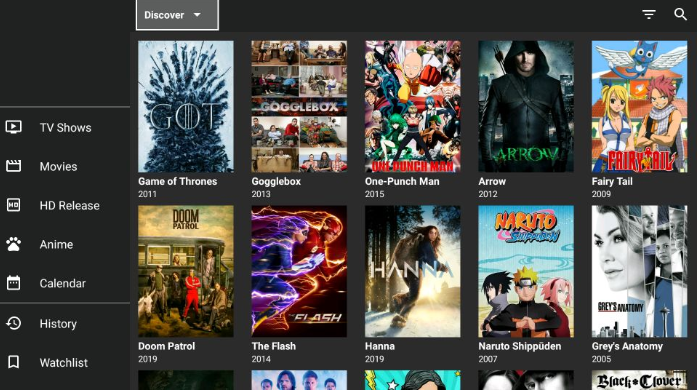
1. Check Your Internet Connection
A steady internet connection is essential for streaming with Bee TV.
- Go to Settings → Network on your Firestick to verify your Wi-Fi strength.
- If the signal is weak, restart your router, or try another network.
- For optimal stability and faster streaming, consider using an Ethernet adapter.
2. Force Stop and Clear Cache/Data
Cache corruption can cause streaming errors, blank screens, or automatic crashes.
- Navigate to Settings → Applications → Manage Installed Applications.
- Select Bee TV, then choose Force Stop.
- Tap Clear Cache, then Clear Data.
- Relaunch Bee TV and check if streaming resumes.
3. Update or Reinstall Bee TV
Outdated versions or faulty installs often result in failure to load links or app crashes.
- Uninstall Bee TV from Settings → Applications → Manage Installed Applications → Bee TV → Uninstall.
- Visit our Tool Box by using downloader code 4244746 to download Bee TV.
- Use the Downloader app or side‑loading tools to reinstall the fresh version.
4. Enable “Unknown Sources” & Permissions
Improper permissions can block installation or autoplay features.
- Go to Settings → My Fire TV → Developer Options.
- If missing, tap About seven times to unlock Developer Options.
- Enable:
- Apps from Unknown Sources for Bee TV
- Optionally, enable ADB Debugging
- After installation, ensure Bee TV has storage permission to access streams.
5. Use an External Media Player
Some Firestick models (e.g., 4K Max) may struggle with Bee TV’s default player. Switching usually fixes playback issues.
- Install a reliable external player like MX Player or VLC.
- In Bee TV: go to Settings → Player Settings → Choose default play action, then select Play with external video player.
- Relaunch Bee TV, select a stream, and choose your external player for playback.
6. Clear Hosts or DNS Interference
VPN or DNS settings can block Bee TV connection to streaming sources.
- If using a VPN or custom DNS, disable it temporarily and retry.
- Switch to default DNS settings.
- Check your network hasn’t blocked streaming sources — ISP-level interference is possible.
7. Power Cycle the Firestick
A full reboot can clear lingering errors in RAM or app processes.
- Unplug the Firestick and TV from power for 1–2 minutes.
- Plug back in and launch Bee TV again—many issues resolve after a power cycle.
8. Real-Debrid Integration
If Bee TV shows only free or nonworking sources:
- Go to Settings → Account within Bee TV.
- Select Login to Real-Debrid, open real-debrid.com/device, and enter the on-screen code.
- Once authenticated, Bee TV will fetch high‑quality premium links — buffering and no‑data issues should disappear.
9. Device Compatibility & Version Rollback
A recent version might not run properly on your Firestick model.
- If issues began after a specific update, rollback to an earlier version of Bee TV.
- For legacy Firesticks (prior to 4K Max), make sure you’re using a version confirmed to work on that model.
10. Check for App or Server Outages
If Bee TV isn’t loading content:
- Visit Bee TV forums or Reddit to look for reports of server-side problems.
- These issues typically resolve after the Bee TV team corrects backend errors.
📜 Legal Disclaimer
The content provided on this website is for educational and informational purposes only. We do not host, distribute, or promote any illegal content or third-party applications that violate copyright laws or Amazon’s terms of service.
Enabling Developer Mode on your Amazon Firestick is a built-in feature provided by Amazon for developers and advanced users. Our guides are designed to show you how to access this feature legally and responsibly. We do not encourage or endorse the use of Developer Mode for unauthorized access to copyrighted material, digital piracy, or any activity that violates applicable laws or platform terms.
By using this website, you acknowledge and agree that:
- You are solely responsible for how you use the information provided.
- You will comply with all applicable local, state, federal, and international laws.
- You understand that modifying your Firestick may void warranties or violate Amazon’s terms of use.
We strongly recommend using a trusted VPN like Fastest VPN or Nord VPN and only installing trusted applications from reliable sources. This site assumes no liability for any legal issues, technical problems, or consequences resulting from your use of Developer Mode or any third-party applications mentioned.
If you do not agree with this disclaimer, please refrain from using this website.

 Total freedom on your Firestick.
Leave a comment