Enable Sideloading on Firestick: A Quick Guide

How to enable downloader on Firestick

Step-by-Step Guide to Enable Sideloading on Amazon Firestick or Fire TV.

Before you can install unofficial or third-party apps, you’ll need to tweak a few settings to enable sideloading on your Firestick. Although we do not encourage streaming copyrighted content, it is still extremely advisable to use a trusted, well-known VPN like Fastest VPN, which is very affordable, or Nord VPN, which has an incredible reputation. You only need to enable your firestick to sideload once, and then you will be able to sideload as many apps as your Firestick’s memory can take. It’s also recommended that you keep on top of your Firestick software updates.

✅ Step 1: Turn on Your Firestick
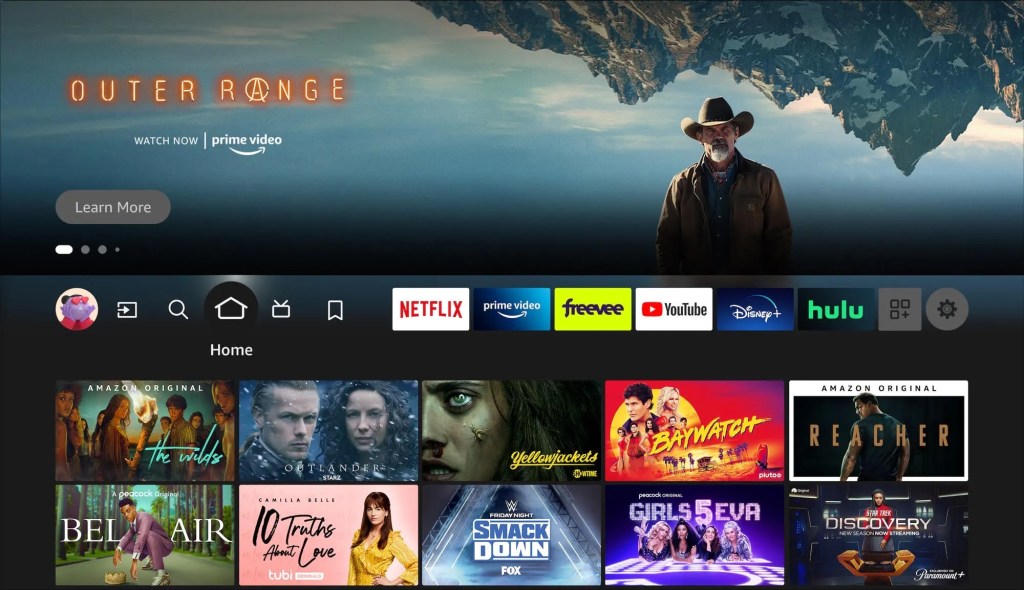
Picture showing the homescreen of an Amazon Firestick after you turn it on.

Make sure your Firestick is powered on and connected to your TV and Wi-Fi.

✅ Step 2: Open “Settings”

Screengrab of the settings page on an Amazon Firestick

From the Fire TV home screen, navigate to the top menu and select Settings (the gear icon on the far right).

✅ Step 3: Go to “My Fire TV”

Scroll over and select My Fire TV (or Device & Software on some models).

✅ Step 4: Enable Developer Options

  1. Choose About.
  2. Scroll to Fire TV Stick (or your specific model) and press the Select button on your remote 7 times.
  3. You’ll see a message that says “You are now a developer!”
  4. Press Back and you’ll now see Developer Options appear in the menu.

✅ Step 5: Turn on “Apps from Unknown Sources”
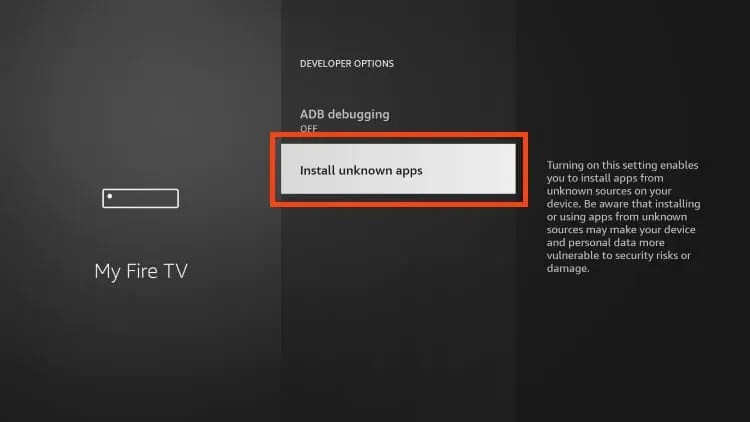
  1. Go into Developer Options.
  2. Select Install unknown apps.
  3. Find and enable permission for Downloader (you’ll do this after you install the app in the next section).

🚀 How to Install and Enable the Downloader App on Firestick

The Downloader app allows you to download and install APK files directly from the internet. Our handy Tool Box page can be accessed from the downloader by using downloader code 4244746, and you can download many of the popular APKs for firestick straight from here.

✅ Step 1: Go to the Firestick Home Screen

Picture showing the homescreen of an Amazon Firestick after you turn it on.

Navigate to the top menu and select the magnifying glass icon (Search).

✅ Step 2: Search for “Downloader”

Type Downloader using the on-screen keyboard. Select it when it appears in the suggestions.

✅ Step 3: Install the App

Click on the orange Downloader app icon and press Download or Get.

✅ Step 4: Enable Sideloading

Once installed:

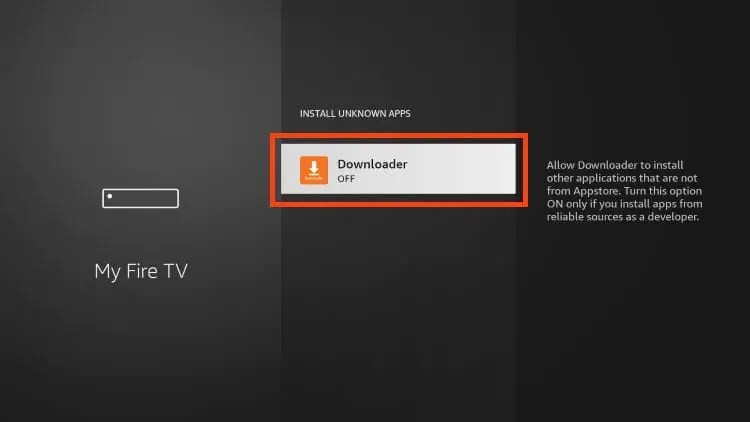
  1. Go back to Settings > My Fire TV > Developer Options > Install unknown apps
  2. Select Downloader and toggle it to ON

🎉 You’re Ready to Sideload Apps!

Now that you’ve enabled sideloading on your Amazon Firestick and set up Downloader, you’re ready to install third-party APKs and explore a whole new world of apps beyond the Amazon Appstore.

🔐Bonus Tip: Use a VPN

We strongly recommend using a trusted VPN like Fastest VPN or Nord VPN when using these apps. This helps protect your identity and prevents ISP throttling. You can read more about the benefits of a VPN on our VPN’s page. Using a Debrid service can also help here, as it acts as a middleman between the file host and your APKs.

Final Thoughts

With Developer Mode enabled and these top Downloader codes, your Firestick transforms into a powerhouse streaming device. Whether you’re after live sports, blockbuster movies, or binge-worthy shows, there’s something on this list for everyone.

🧠 Pro Tip: Bookmark this post to stay updated—Downloader codes change frequently, and we’ll update this list as new apps rise in popularity.


📜 Legal Disclaimer

The content provided on this website is for educational and informational purposes only. We do not host, distribute, or promote any illegal content or third-party applications that violate copyright laws or Amazon’s terms of service.

Enabling Developer Mode on your Amazon Firestick is a built-in feature provided by Amazon for developers and advanced users. Our guides are designed to show you how to access this feature legally and responsibly. We do not encourage or endorse the use of Developer Mode for unauthorized access to copyrighted material, digital piracy, or any activity that violates applicable laws or platform terms.

By using this website, you acknowledge and agree that:

  • You are solely responsible for how you use the information provided.
  • You will comply with all applicable local, state, federal, and international laws.
  • You understand that modifying your Firestick may void warranties or violate Amazon’s terms of use.

If you do not agree with this disclaimer, please refrain from using this website.

24 responses to “Enable Sideloading on Firestick: A Quick Guide”

  1. 10 Best FREE Firestick Movie APKs May 2025 – Total freedom on your Firestick. Avatar
  2. 9 Best FREE Firestick Sports Apps May 2025 – Total freedom on your Firestick. Avatar

    […] Amazon Firestick, you can access a wide array of free sports streaming apps through the Downloader app. These apps offer live sports coverage from around the globe, including football, basketball, […]

    Like

  3. How to Set up Kodi on Firestick – Total freedom on your Firestick. Avatar

    […] Developer Mode enabled and these top Downloader codes, your Firestick transforms into a powerhouse streaming […]

    Like

  4. How to Download HDO Box on an Amazon Firestick – Total freedom on your Firestick. Avatar

    […] Developer Mode enabled and these top Downloader codes, your Firestick transforms into a powerhouse streaming […]

    Like

  5. How to Download Cinema HD on an Amazon Firestick – Total freedom on your Firestick. Avatar

    […] installing third-party apps, you must enable Developer […]

    Like

  6. How to Download Bee TV on an Amazon Firestick – Total freedom on your Firestick. Avatar

    […] install third-party apps like BeeTV, you must enable Developer […]

    Like

  7. How to Download CyberFlix on an Amazon Firestick – Total freedom on your Firestick. Avatar

    […] To install third-party apps like CyberFlix, you must enable Developer Options: […]

    Like

  8. How to Install Flix HQ on an Amazon Firestick – Total freedom on your Firestick. Avatar

    […] to the My Fire TV menu; you should now see Developer Options […]

    Like

  9. How to Install HD Streamz on an Amazon Firestick – Total freedom on your Firestick. Avatar

    […] to the My Fire TV menu; you should now see Developer Options […]

    Like

  10. How to Install SmartTube on an Amazon Firestick – Total freedom on your Firestick. Avatar

    […] to the My Fire TV menu; you should now see Developer Options […]

    Like

  11. How to Install RBTV77 on an Amazon Firestick – Total freedom on your Firestick. Avatar

    […] RBTV77 is a free sports streaming application that provides access to live events such as football, basketball, cricket, and more. Since it’s not available on the Google Play Store, you’ll need to sideload it using the Downloader app. […]

    Like

  12. How to Install FlixVision on an Amazon Firestick – Total freedom on your Firestick. Avatar

    […] With Developer Mode enabled and these top Downloader codes, your Firestick transforms into a powerhouse streaming device. Whether you’re after live sports, blockbuster movies, or binge-worthy shows, there’s something on this list for everyone. […]

    Like

  13. How to Install Streamfire on an Amazon Firestick – Total freedom on your Firestick. Avatar

    […] With Developer Mode enabled and these top Downloader codes, your Firestick transforms into a powerhouse streaming device. Whether you’re after live sports, blockbuster movies, or binge-worthy shows, there’s something on this list for everyone. […]

    Like

  14. How to Install Tivimate on an Amazon Firestick – Total freedom on your Firestick. Avatar

    […] With Developer Mode enabled and these top Downloader codes, your Firestick transforms into a powerhouse streaming device. Whether you’re after live sports, blockbuster movies, or binge-worthy shows, there’s something on this list for everyone. […]

    Like

  15. How to Install 1 Pix Media on an Amazon Firestick – Total freedom on your Firestick. Avatar

    […] With Developer Mode enabled and these top Downloader codes, your Firestick transforms into a powerhouse streaming device. Whether you’re after live sports, blockbuster movies, or binge-worthy shows, there’s something on this list for everyone. […]

    Like

  16. How to Install Smarters IPTV on an Amazon Firestick – Total freedom on your Firestick. Avatar

    […] With Developer Mode enabled and these top Downloader codes, your Firestick transforms into a powerhouse streaming device. Whether you’re after live sports, blockbuster movies, or binge-worthy shows, there’s something on this list for everyone. […]

    Like

  17. How to Install APKPure on an Amazon Firestick – Total freedom on your Firestick. Avatar

    […] With Developer Mode enabled and these top Downloader codes, your Firestick transforms into a powerhouse streaming device. Whether you’re after live sports, blockbuster movies, or binge-worthy shows, there’s something on this list for everyone. […]

    Like

  18. How to Install FilmPlus on an Amazon Firestick – Total freedom on your Firestick. Avatar

    […] With Developer Mode enabled and these top Downloader codes, your Firestick transforms into a powerhouse streaming device. Whether you’re after live sports, blockbuster movies, or binge-worthy shows, there’s something on this list for everyone. […]

    Like

  19. How to Install Aptoide on an Amazon Firestick – Total freedom on your Firestick. Avatar

    […] With Developer Mode enabled and these top Downloader codes, your Firestick transforms into a powerhouse streaming device. Whether you’re after live sports, blockbuster movies, or binge-worthy shows, there’s something on this list for everyone. […]

    Like

  20. How to Install MX Player on an Amazon Firestick – Total freedom on your Firestick. Avatar

    […] With Developer Mode enabled and these top Downloader codes, your Firestick transforms into a powerhouse streaming device. Whether you’re after live sports, blockbuster movies, or binge-worthy shows, there’s something on this list for everyone. […]

    Like

Leave a reply to How to Download Bee TV on an Amazon Firestick – Total freedom on your Firestick. Cancel reply