If you’re looking to turn your Amazon Firestick into a streaming powerhouse, install Kodi and you will never look back! Kodi is a free and open-source media player that lets you stream movies, TV shows, music, and more from both local and online sources. Kodi is one of the longest running Firestick apps, and it has stood the test of time because it is easy to set up and use and Firestick users can personalise their experience.
In this blog post, you’ll learn exactly how to install Kodi on an Amazon Firestick—even if you’re not tech-savvy. We’ll also cover how to use Kodi once it’s installed and discuss how to stay safe while streaming. You can then personalise your set up once you start to install Kodi add-ons.
📦 What You’ll Need
- An Amazon Firestick (any generation)
- A TV with an HDMI port
- A reliable internet connection
- A free Amazon account
- About 10–15 minutes
- A good list of the add-ons you want yo use and where to download them from.
🛠 Step 1: Prepare Your Firestick to Install Kodi
Before you can install Kodi, you need to enable third-party apps on your Firestick.
🔓 Enable “Apps from Unknown Sources”
- Power on your Firestick and go to the home screen.
- Click on Settings (gear icon in the upper-right corner).
- Navigate to My Fire TV (or “Device” on some versions).
- Select Developer Options.
- Turn ON both:
- ADB Debugging
- Apps from Unknown Sources
⚠️ Important: Turning on these settings allows you to install apps that aren’t from the Amazon Appstore. Be cautious and only install trusted apps.
🔍 Step 2: Install the Downloader App

You’ll need an app called Downloader to download and install Kodi.
📥 How to Get Downloader
- From the Firestick home screen, select the Search icon (magnifying glass).
- Type Downloader and select it from the list.
- Choose the Downloader app (orange icon) and click Download or Get.
- Once installed, click Open.
🌐 Step 3: Download and Install Kodi

Now that Downloader is installed, you can use it to install Kodi.
📡 Use Downloader to Install Kodi
- Open the Downloader app.
- In the URL field, enter the downloader code 4244746. This will take you to our Tool Box page to download Kodi directly.
- Click “download”.
- The APK file will begin downloading.
- Once it finishes, select Install when prompted.
- After installation, click Done.
- You can delete the APK file to save space by clicking Delete when asked.
✅ Kodi is now installed on your Firestick!
📁 Step 4: Launch Kodi
- Return to the Firestick Home screen.
- Navigate to Your Apps & Channels.
- Scroll down to find Kodi (you can move it to the top for easier access).
- Open Kodi—on the first launch, it may take a minute to initialize.
⚙️ Step 5: Set Up Kodi
When you launch Kodi for the first time, you’ll see a clean, basic interface. Here’s how to personalize and expand it.
🎨 Customize the Interface
- Go to Settings > Interface to:
- Change the skin (visual style)
- Set your language or region
- Enable or disable RSS feeds
🔌 Install Add-ons
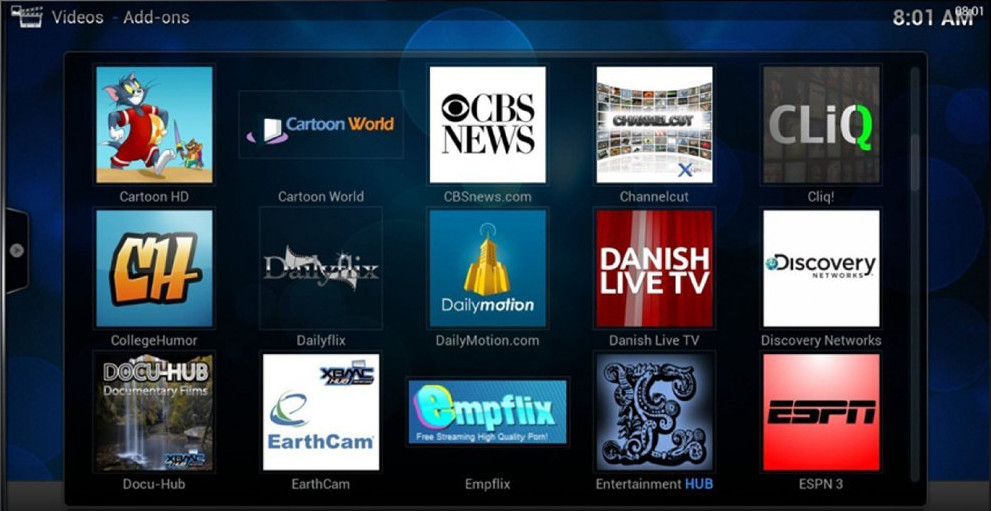
Add-ons allow you to stream content. Kodi doesn’t come with content—you must add it yourself.
📦 Official Add-ons
- Go to Add-ons > Install from repository > Kodi Add-on repository.
- Choose categories like Video add-ons, Music add-ons, etc.
- Select and install your desired services.
⚠️ Third-party Add-ons
You can install popular add-ons like The Crew, Seren, or Venom from external repositories, but be cautious—not all are legal or safe.
🔒 Stay Safe: Use a VPN
Using a VPN (Virtual Private Network) is essential when streaming on Kodi, especially with third-party add-ons.
✅ Benefits of a VPN
- Hide your IP address and identity
- Bypass geo-blocks and ISP throttling
- Encrypt your streaming activity
Popular VPNs for Firestick include:
🧭 Using Kodi: A Quick Tour
Here’s what you can do with Kodi once it’s set up:
| Feature | Description |
|---|---|
| Movies/TV Shows | Stream from local files or add-ons |
| Music | Play MP3s, FLAC, and more from local or networked storage |
| Live TV | Integrate with PVRs or IPTV add-ons |
| Photos | View images from your USB drive or cloud |
| Weather | Add weather info from services like OpenWeatherMap |
Use the remote navigation buttons to explore Kodi’s categories and press the center/select button to enter or play.
🧼 Bonus Tips for Smooth Kodi Usage
- Clear cache regularly: Use apps like Cleaner for Fire TV to prevent slowdowns.
- Keep Kodi updated: Revisit
https://kodi.tv/downloadto manually check for updates. - Use a Bluetooth keyboard: Easier navigation and typing inside Kodi.
Final Thoughts
With Developer Mode enabled and these top Downloader codes, your Firestick transforms into a powerhouse streaming device. Whether you’re after live sports, blockbuster movies, or binge-worthy shows, there’s something on this list for everyone.
🧠 Pro Tip: Bookmark this post to stay updated—Downloader codes change frequently, and we’ll update this list as new apps rise in popularity.
📜 Legal Disclaimer
The content provided on this website is for educational and informational purposes only. We do not host, distribute, or promote any illegal content or third-party applications that violate copyright laws or Amazon’s terms of service.
Enabling Developer Mode on your Amazon Firestick is a built-in feature provided by Amazon for developers and advanced users. Our guides are designed to show you how to access this feature legally and responsibly. We do not encourage or endorse the use of Developer Mode for unauthorized access to copyrighted material, digital piracy, or any activity that violates applicable laws or platform terms.
By using this website, you acknowledge and agree that:
- You are solely responsible for how you use the information provided.
- You will comply with all applicable local, state, federal, and international laws.
- You understand that modifying your Firestick may void warranties or violate Amazon’s terms of use.
If you do not agree with this disclaimer, please refrain from using this website.


 Total freedom on your Firestick.
Leave a reply to 10 Best FREE Firestick Movie APKs May 2025 – Total freedom on your Firestick. Cancel reply